Showing posts with label hardware. Show all posts

Sunday, March 28, 2021

Running a Raspberry Pi 4 from a USB portable SSD

I've been experimenting with the Raspberry Pi 4 as both a low-cost Linux desktop computer and a server. As inexpensive as it may be, there's lots of potential in the hardware and plenty of ways to make the most out of the miniature computer. One way of doing this is to use a portable SSD instead of a microSD card.

Newer Raspberry Pi boards, starting from revision 1.2 of the Raspberry Pi 2 Model B+, have the ability to boot directly from a USB storage device such as a flash drive or portable SSD, eliminating the need to use a microSD card. The use of an SSD can greatly increase storage performance, capacity, and reliability over a microSD card (more on this below).

There are a number of considerations to doing this, some of which are specific to the Pi 4:

  • The process is relatively simple. Raspberry Pi OS ships with an "SD Card Copier" utility, listed under Accessories in the main menu, which can be used to copy the running system to another storage device.
    • This process will erase all data on the target drive, so be sure you've selected the correct drive and backed up any important data on it.
    • The target drive must use an MBR partition table. If it uses GPT partitioning, the copy process will fail, and the drive will need to be repartitioned and reformatted with an MBR.
    • After copying, the target drive will contain both a small boot partition and a large Linux ext4 partition containing the full root filesystem outside of /boot. If you'd prefer to have a smaller root partition, run resize2fs on the second partition of the target drive (usually /dev/sda2) to shrink the ext4 filesystem to the desired size, then use cfdisk on the whole disk (usually /dev/sda) to shrink the partition to that same size.
    • It should be noted that there is no snapshot functionality involved, so copies are inconsistent and will not reflect the system state at any one point in time. As a result, I'd recommend rebooting the Pi and having no other applications running before beginning this process. Any services that are particularly sensitive to data consistency, such as database servers, should be stopped as well.
  • Enabling this feature on earlier generations of the Raspberry Pi may require writing to a one-time programmable memory on the board, a permanent and irreversible process. On the Raspberry Pi 4 Model B, an EEPROM firmware update may be required to enable USB booting. For more details, see the official documentation.
  • Some SSDs can require too much power for the USB ports on a Raspberry Pi. In particular, if the drive internally uses NVMe technology, such as an M.2 NVMe drive inside a USB enclosure or a retail portable SSD rated at more than 600 MB/s, it may require large bursts of power, which can cause the drive to disconnect while in use. SATA-based drives are less likely to experience this issue.
    • I learned this the hard way while trying to use a Plugable USB-C to NVMe enclosure containing a 1TB Samsung SSD 970 EVO Plus. The system simply could not finish copying the operating system without the drive disconnecting during the copy. This issue did not occur with a 500GB Samsung SSD 850 EVO in a StarTech USB 3.1 Gen 2 enclosure.
  • Trim, which is needed to maintain optimal performance on SSDs, will not work without some manual configuration, even if the drive otherwise supports it. Jeff Geerling has a detailed blog post on how to enable it; it's a rather complicated procedure and I won't be repeating it here.

Why use an SSD instead of a microSD card?

Raspberry Pi computers are designed primarily to use inexpensive SD or microSD memory cards for system storage. However, most microSD cards are not designed to be used as the boot drive or primary storage device for a computer. Instead, they are typically optimized for sequential or streaming I/O where data is read from or written to the card in large chunks. This makes sense given that these memory cards are primarily used to store pictures, videos, music, and other media files on devices like smartphones and cameras.

But computer operating systems rely much more on random I/O, where small bits and pieces of data are read and written in many different places on the storage media. A typical SD card, with a low-power controller tuned for optimal sequential I/O performance, will often perform poorly when asked to process many small random reads and writes. SSDs can deliver much higher performance than memory cards, especially in random I/O.

An SSD will also be much more durable than a memory card when used as an operating system drive. I won't go into detail here, but suffice it to say that due to differences in flash memory controllers, firmware features and optimizations, storage capacities, and the underlying NAND flash memories themselves, an SSD will be much less prone to failure than a microSD card over extended usage in a Raspberry Pi. They also provide valuable S.M.A.R.T. information which can be used to monitor usage statistics and possibly detect imminent failure, making it easier to avoid data loss. (On Raspberry Pi OS, you'll need to install the smartmontools package to use the smartctl command and read S.M.A.R.T. data.) Of course, any storage device can fail without warning, so it's always important to maintain current backups.

Saturday, December 19, 2020

Adventures with the Raspberry Pi 4

This is something I've been meaning to do for a while... but I finally got myself a Raspberry Pi 4 Model B 4GB, along with a few essential things to go with it. It's a tiny, inexpensive Arm-based computer, designed foremost for educational use, yet versatile enough to serve as a general-purpose Linux device.

As someone who's had a fair bit of experience with Linux over the years, particularly with openSUSE on both laptops and servers, the experience is both familiar and foreign. I installed Raspberry Pi OS (32-bit) onto a microSD card using the official Raspberry Pi Imager application on Windows, and everything loaded up and worked just as expected. But coming from an RPM-based Linux distribution, there was a bit of a learning curve as I had next to no experience with the apt package manager. The LXDE desktop also took some time for me to get used to.

While I can't say the Raspberry Pi 4 can fully replace a proper PC, it performs surprisingly well for such an inexpensive computer, and it can certainly serve as a basic web-browsing and productivity device. 4 GB of RAM has proven to be plenty for a low-power Arm-based device, even with multiple tabs open in Firefox (utilization typically sits just within 2 GB). You'll probably find desktop applications to be rather sluggish, and you may have to wait several seconds to do things that a modern laptop can do in a split-second, but it's certainly usable.

For the time being, I'm simply experimenting with the Pi as a Linux desktop microcomputer, though I do have a few project ideas for the future. While the starting price for the Raspberry Pi 4, a mere $35 for the 2GB base model ($55 for 4GB, $75 for 8GB), can be extremely tempting, the cost can rapidly balloon as you add essential supplies and accessories. Memory cards, keyboards and mice, displays, fans, cases, and other items can easily add up to well over a hundred dollars. Nonetheless, it's a worthwhile experience and you probably won't regret getting one.

I'll be sharing more about getting the most out of the Raspberry Pi 4 in later posts. Stay tuned.

Draco

Tuesday, February 19, 2019

Using an SSD as a Linux swap device isn't (usually) as destructive as you thought it would be

It's been a while since I've posted something on this blog but there's something I'd really like to get out of my head.

I've read, and continue to read, claims from others on the Internet that putting swap space on an SSD is bad for it and will quickly kill it. However, these statements rest on the assumption that the swap space will be used heavily or that the SSD's endurance is low enough that this would cause it to fail well before the end of its designed service life. In the vast majority of situations, neither of these are true. Even on bottom-bin hardware like Bifrons (a cheap Lenovo netbook with 2 GB of memory and 64 GB of eMMC flash storage), where endurance is more likely to be an issue, it's still very likely that the flash memory will last the intended life of the system.

Several months back, I took an old 64 GB Plextor M5M mSATA SSD previously used in one of my old laptops, put it in a StarTech USB 3.1 Gen 2 enclosure, and plugged it into the USB 3.0 port on this laptop. I then secure-erased it, partitioned 8 GB of that drive as a swap partition, and enabled it as swap space. Using the Linux iostat command, I monitored the amount of data written to the drive over time as I used the system for everyday web browsing and productivity. The worst I saw was 170 GB of writes to the drive over just shy of nine days of usage, or about 20 GB of writes per day from swapping. Remember that this system has just 2 GB of memory so some swapping is likely to be unavoidable. It's also noteworthy that swappiness was set to 100, which makes the system swap more aggressively than normal (the default is 60).

20 GB per day is well within the endurance limits of most modern SSDs. A good name-brand SSD like the Samsung SSD 860 EVO will be rated for far more than that over its warranty period; the 250 GB version of the 860 EVO is warranted for five years or 150 TBW (total terabytes written). That's 84 GB per day over five years, and 20 GB is less than a quarter of this value. Even if you add another 10 GB per day (because a typical user would put the system/boot partition and the swap partition on the same disk), you're still not using even half of the drive's rated endurance within its warranty period. Even cheaper SATA SSDs with lower endurance ratings are unlikely to fail under this kind of workload.

This does not mean that swap is completely harmless, as endurance problems can still occur if you're swapping to a low-cost, low-capacity flash memory device. The eMMC flash module on Bifrons is rated by its manufacturer (SanDisk) for 44 TBW of endurance. This is 40 GB per day over three years, or 24 GB per day over five years, which should be enough to last the service life of the device. However, eMMC modules are permanently installed in the device and cannot be replaced without highly-specialized equipment (they are soldered onto the motherboard). Furthermore, the limited capacity of the device means that the typical consumer will use most of its capacity, which increases write amplification and reduces the effective endurance of the NAND, possibly below its specifications, and many netbooks of this kind have just 32 GB of storage which further compounds the endurance issue. (The same also applies to low-cost external flash memory devices like SD cards or USB flash drives.) This is, in fact, the reason I put the swap onto an external SSD and not on the system's onboard flash memory.

But this isn't the case for the vast majority of system configurations, where the benefits of placing swap on an SSD outweigh the risks. Most flash memory devices are far faster than any electromechanical hard drive; even if swapping significantly degrades system performance, the performance impact of swapping to an SSD is much lower than swapping to spinning rust. The above endurance issues only truly apply if 1) you're swapping to a cheap and small flash memory device like an eMMC chip or USB flash drive; and 2) your system has low memory and your usage patterns are such that you need to swap more than occasionally. Most systems have enough memory that swapping only happens rarely, if at all, rendering the whole endurance issue moot. And even when swapping is necessary, the drive isn't going to be written to so much that it'll exhaust the endurance of the drive and cause it to fail prematurely. Swapping isn't going to cause the drive to get hundreds of gigabytes or terabytes of writes per day. The 20 GB per day figure is the highest that one might encounter in a typical day of usage, and most users aren't going to see this much swapping.

If endurance is still a concern, there are solutions like zram which can effectively compress the contents of system memory and therefore allow more data to be stored in RAM before the system needs to swap to disk. While this comes at the cost of increased CPU usage, you'll still get better performance than if you're swapping to disk, and fitting more data into memory means that less data needs to be swapped out and written to the flash memory.

Ultimately, for the vast majority of use cases, putting swap on your SSD isn't going to kill it.

Tuesday, August 21, 2018

On NVIDIA GeForce RTX and the state of competition in the graphics card market

On August 20, 2018, NVIDIA launched a new line of graphics cards based on their new Turing architecture. Branded as GeForce RTX, these new cards boast several significant new features, including:
  • Fixed-function ASIC ray-tracing units, enabling real-time ray-tracing for the ultimate in realism (more on that below)
  • Tensor cores for AI. There are myriad applications for this, one of which is faster and smarter anti-aliasing.
  • Datacenter-grade NVLink connectivity for SLI, providing as much as 50 times the bandwidth of conventional SLI connections.
  • Redesigned shader cores with new features like Variable Rate Shading for higher performance.
  • More CUDA cores and higher efficiency enabled through the TSMC 12FFN process designed specifically for NVIDIA.
Undoubtedly, the most important new feature is the real-time ray-tracing capability. Ray-tracing enables the most realistic lighting effects possible by actually computing the paths that light rays travel. This process is extremely computationally expensive, which means it's long been been limited to movies and other media which do not require real-time graphical rendering. Instead, video games use simpler rasterization techniques which provide approximations of lighting effects. NVIDIA's new RTX graphics cards contain specialized hardware designed specifically to accelerate ray-tracing, enabling cinematic lighting effects that would otherwise be impossible to implement in video games and other real-time applications. NVIDIA has also developed RTX middleware, built on the DirectX Raytracing API, to enable game developers to take advantage of this functionality more easily.

However, there is a more sinister side to these new graphics cards.

Saturday, July 14, 2018

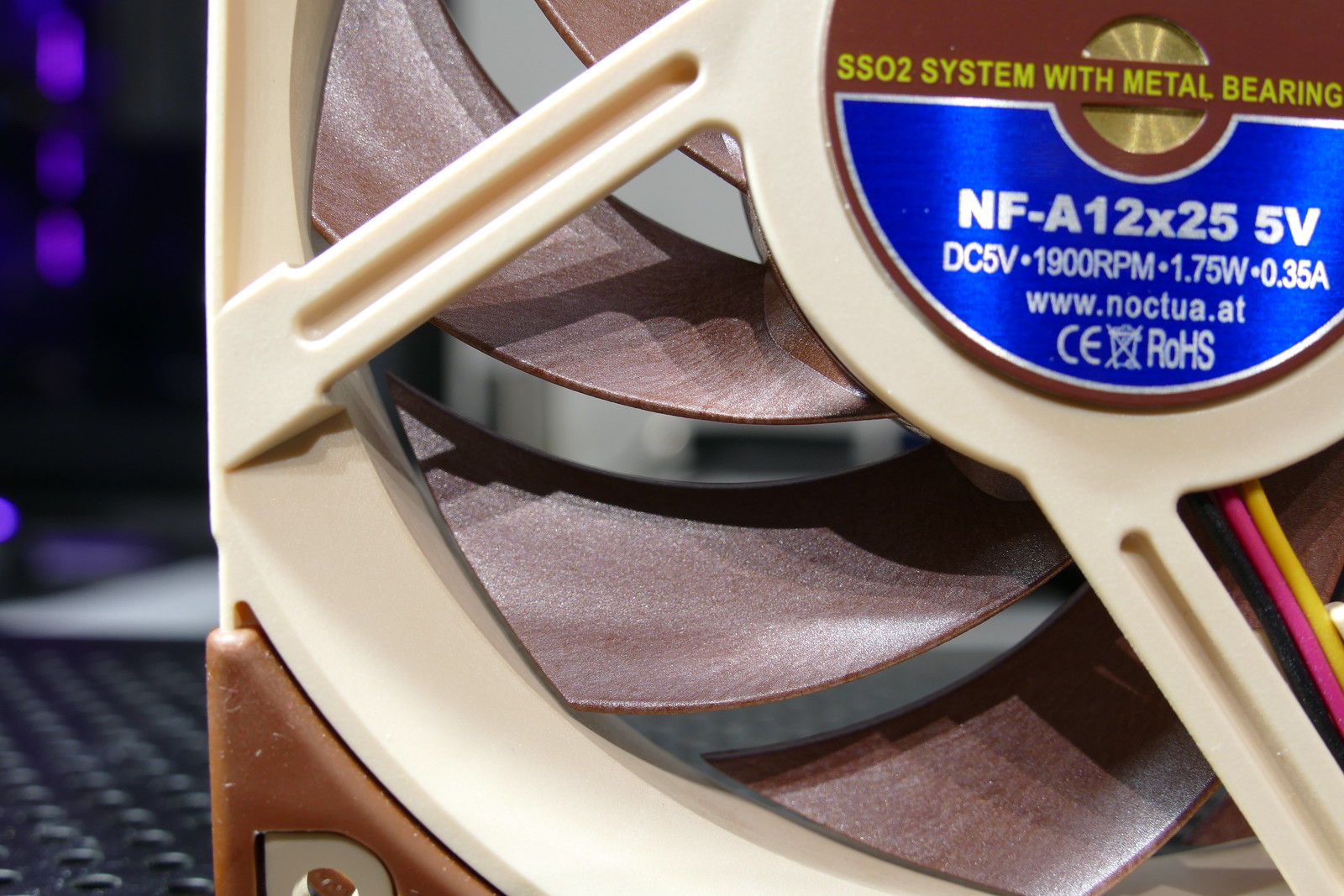
On the Noctua NF-A12x25: the most advanced fan ever made?

https://www.flickr.com/photos/57993471@N06/43395501561/

Call me crazy, but I've fallen in love with a cooling fan.

The Noctua NF-A12x25 (link to standard PWM version for use in PCs) is by far the most technologically advanced fan ever made by the Austrian cooling solutions company. It took four and a half years to develop with more than than 200 prototypes made, and even required the development of an expensive, proprietary plastic material for the impeller. The result is an engineering masterwork of a fan that outperforms anything else like it.

The specific version of the NF-A12x25 I have is the 5V model. While this means that it's not directly usable in most PCs, as fan headers are typically 12V, the 5V version comes with a USB adapter, which opens up endless new possibilities. One can now use it to cool practically anything, from set-top boxes to mini-fridges (that was my idea). This particular model, along with several other 5V fans spanning nearly the entire Noctua lineup from 40mm to 200mm, was announced on July 4, 2018.

The key to the NF-A12x25's impressive performance is a proprietary liquid-crystal polymer called Sterrox. LCPs are a unique class of plastics which exhibit very high rigidity and strength due to their molecular structure, which is more orderly than those of traditional plastics. Noctua went through the trouble of developing their own plastic material because a key design goal was to minimize tip clearance: the spacing between the tip of the impeller blades and the frame. With conventional plastics like PBT, over several years of continuous use, the blades can actually stretch slightly, which means there needs to be some leeway between the impeller and the frame. However, this gap results in some airflow being lost, and in situations requiring high static pressure, like a fan attached to a processor heatsink or liquid cooler radiator, air can leak back through this gap. LCPs like Sterrox exhibit far better stability over time and therefore allow for a much narrower tip clearance, as little as 0.5mm, when most PC case fans have closer to a 1.5mm to 2mm gap. (Notice, in the image above, just how close the blades are to the frame!) The high rigidity of the Sterrox material also makes the fan blades less prone to surface vibrations which can create added noise during operation.

Sunday, December 3, 2017

Overview of the Astaroth desktop

Throughout this blog, I'll be referencing Astaroth, my custom-built desktop named after the demon in the Ars Goetia. This post will serve as an overview of the system and its capabilities.

Astaroth is an AMD Ryzen-based full-tower desktop PC designed for both gaming and workstation applications. It is the first desktop built entirely on my own, and represents the largest investment I've ever made into any computer, emphasizing long-term performance, scalability, and upgradability. Here are the specs:
  • ASUS ROG Crosshair VI Extreme AM4 EATX motherboard
  • AMD Ryzen 7 1800X (8C/16T @ 3.64.0+ GHz)
  • Corsair H100i v2 240mm liquid cooler with AM4 retention bracket
  • 32 GB (2x16GB) G.SKILL Ripjaws V DDR4-3200 memory (operating at 2933 MT/s)
  • EVGA GeForce GTX 1080 Ti FTW3 Gaming (3584 CUDA cores @ 1569–1683+ MHz, 11 GB GDDR5X @ 12 Gbps)
  • 1 TB (1,024 GB) Samsung SSD 960 PRO for boot and applications
  • 1 TB (1,024 GB) SanDisk Ultra 3D SSD for bulk storage
  • 500 GB Samsung SSD 860 EVO for virtual machines and scrap space
  • Seasonic PRIME Titanium 850W power supply
  • Corsair Graphite 760T full-tower case
  • Dell S2417DG gaming monitor (23.8" TN, 1440p 144+ Hz with G-SYNC)
Astaroth will serve as my primary platform for much of my benchmarks, gaming, and performance tuning. I've posted pictures of the rig on Flickr if you'd like to take a closer look.

Draco